Time tracking
Time tracking and timesheets
Track the hours you spend on projects and tasks, by timer as you work or by hand at the end of the week. Get them approved, then turn them into an invoice without retyping a single figure.
Recording the hours
Two ways to fill a timesheet
Some work suits a timer running in the background; some suits sitting down on Friday with the week in front of you. The timesheet does both, on the same rows.
- Entry modes
- Day or weekEntry modes
- As you work
- Live timerAs you work
- Browser based
- Any deviceBrowser based
- Start a timer as you work
- In day mode, start the timer and track time against a project or task while you are doing it. Hours written up on Friday afternoon are always rounder than the ones recorded as they happened.
- Or fill in the week by hand
- Week mode lets you enter the time per day you expect to spend on each project and task. Click through the days of the week to record against different projects without starting again each time.
- Hours belong to a project and a task
- Every row is tracked against a project, a team and a task, so time is never a number floating on its own. That is what makes it billable later without any reconstruction.
- See where the time went
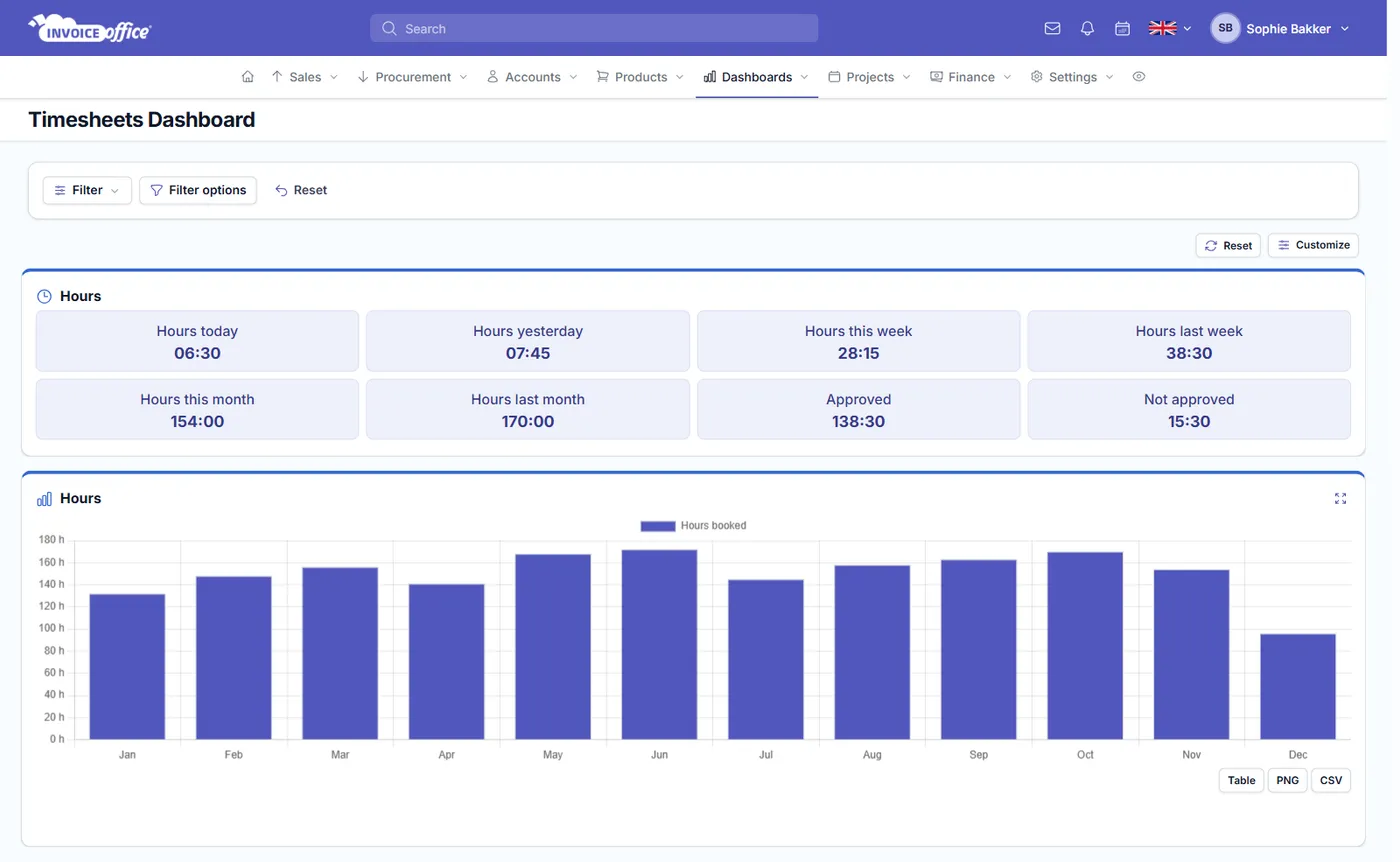
- Use the week or day overview to see how long you have actually worked on a project. Useful before you invoice, and more useful still before you quote the next job like it.
- Track from site, not from memory
- The timesheet runs in the browser, so the timer works the same on a phone on site as on the laptop back at the office. No app to install and nothing to sync afterwards.
- Approved hours become an invoice
- From the Action button, turn a timesheet into an invoice for the customer, tick what should appear on it, and send it like any other invoice. The hours you logged are the hours you bill.
Getting accurate time
Unbilled hours are the expensive kind
Time tracking only pays for itself if the hours are right. Four habits do most of the work — none of them take longer than the guessing they replace.
Log as you go
Timers beat reconstruction. Hours written up at the end of the week are always rounder than the real ones, and rounder almost always means you undercharged rather than over.
Log against the right project
Time recorded on the wrong project is invisible on the invoice it belonged to. It is not lost from the system, but it is lost from the bill, which amounts to the same thing.
Get approval done promptly
Approval close to the work is when the customer still remembers whether the hours were reasonable. A month later you are asking someone to agree to something they cannot picture.
Set the rate before you start
The hourly tariff is set on the project — per task, per person or per project. Getting it right up front means the invoice needs no arithmetic when the work is done.
How it works
From project to logged hour
Step 1Set up the project first
Timesheets are built on projects, so go to Projects → Create projects and add the project, its team and its tasks before you track anything.
Step 2Add a timesheet
Go to Projects → Timesheets → Add timesheet, then select the project, team and task you want to track against.
Step 3Track by day or by week
Run the timer in day mode as you work, or fill in the week by hand. Click through the days to record time against different projects and tasks.
Time tracking questions, answered
How do I track time in Invoice Office?
Do I need a project before I can track time?
Can I track time from my phone?
Can I turn tracked hours into an invoice?
Can my customer approve the hours before I bill them?
How is the hourly rate decided?
Can my team log their own hours?
More answers in our FAQ and help center.
Related
Where your hours come from and go
Bill the hours you actually worked
Start the timer today. Free to begin, and team members cost you nothing.